> ## Documentation Index
> Fetch the complete documentation index at: https://ezvals.com/llms.txt
> Use this file to discover all available pages before exploring further.
# Web UI
> Run evals and review results in your browser
Start the web UI with `ezvals serve`:
```bash theme={null}
ezvals serve evals.py
```
 ## How It Works
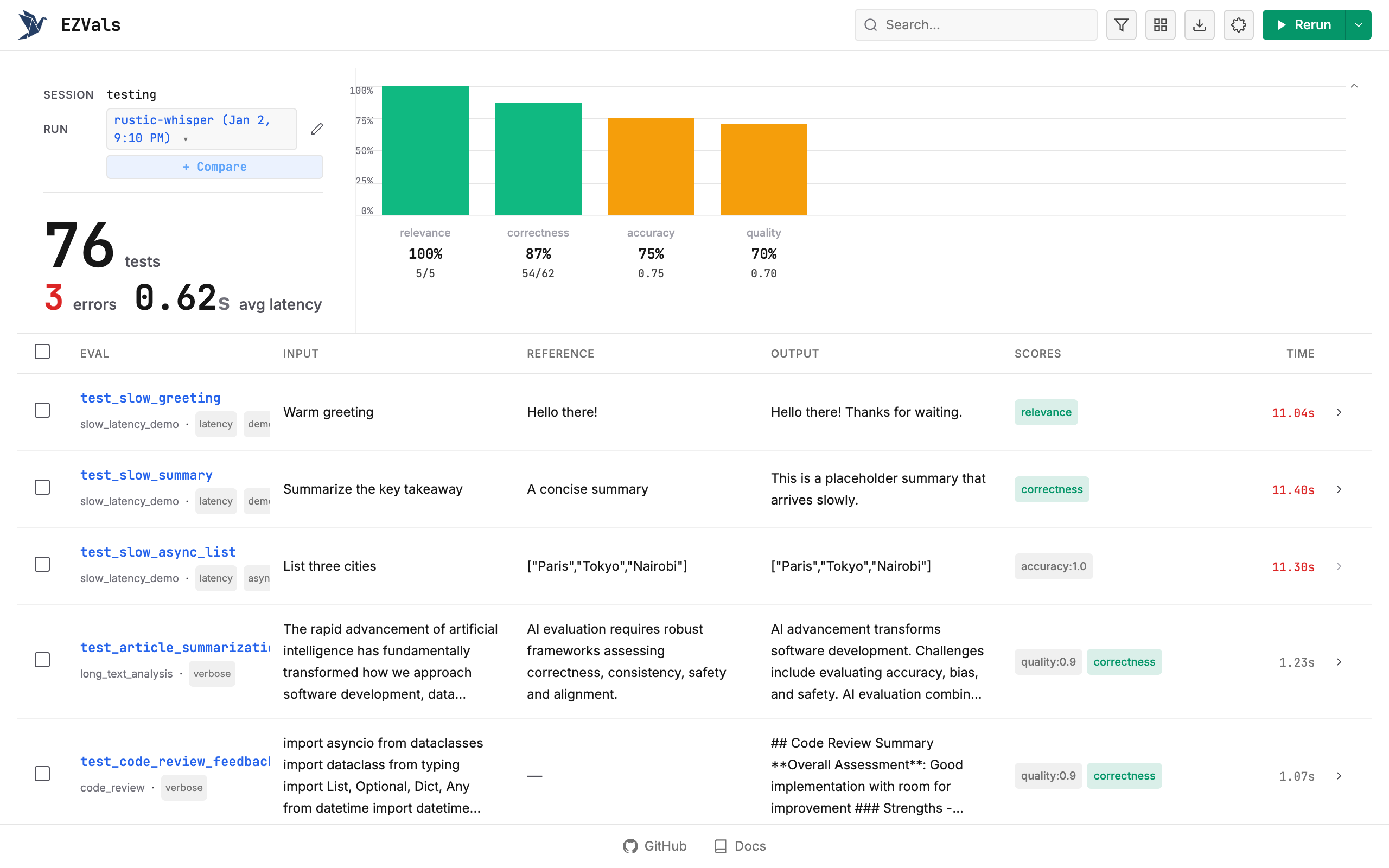
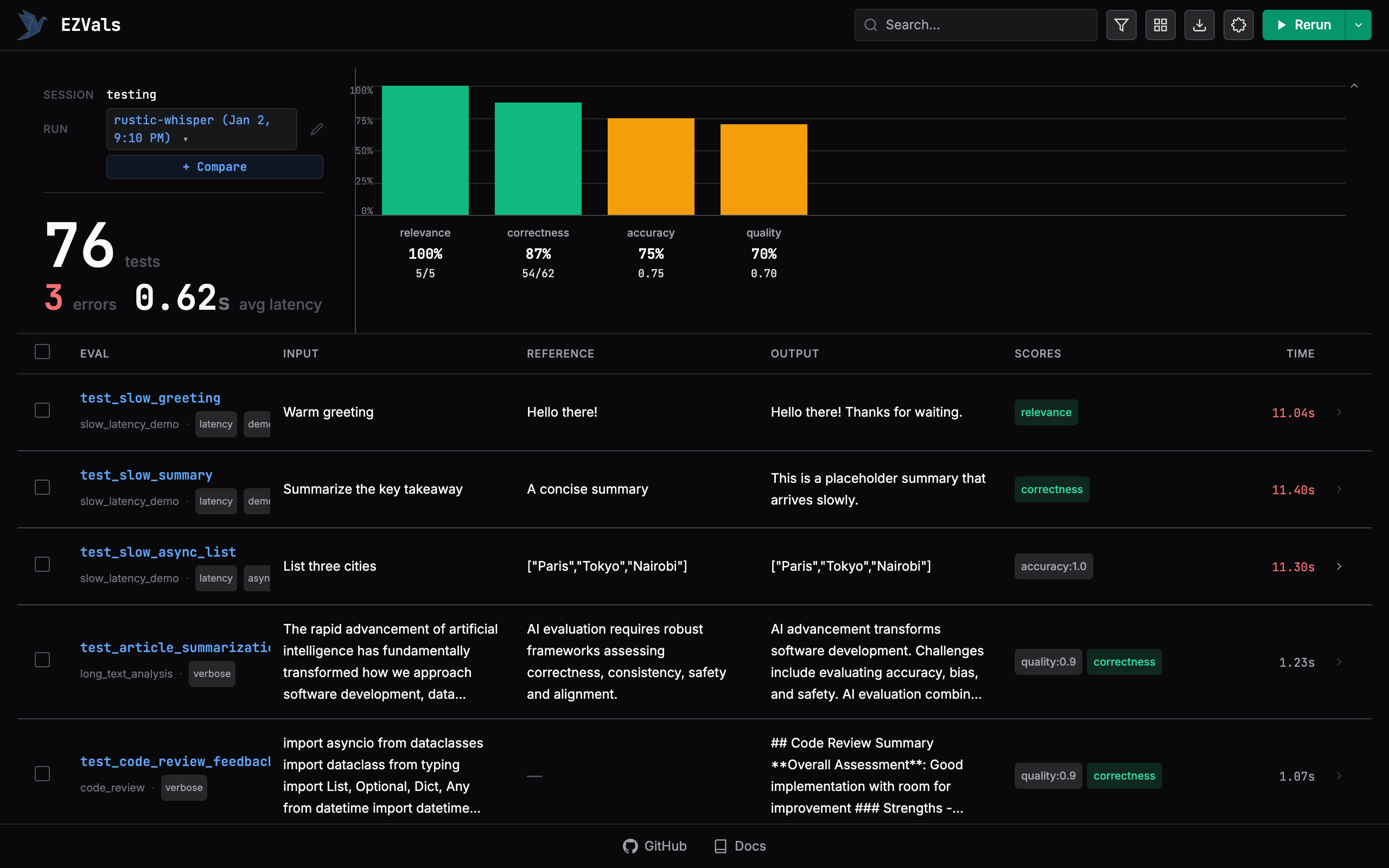
The UI discovers all `@eval` decorated functions in your file but doesn't run them until you click **Run**. Results stream in real-time as each evaluation completes.
Results are saved to `.ezvals/runs/` as JSON files. The UI loads from `latest.json` by default, which is a copy of the most recent run.
## Results Storage
```
.ezvals/
├── runs/
│ ├── gpt5-baseline_2024-01-15T10-30-00Z.json
│ ├── swift-falcon_2024-01-15T14-45-00Z.json
│ └── latest.json
└── ezvals.json # Configuration
```
Each run file includes session metadata:
```json theme={null}
{
"session_name": "model-upgrade",
"run_name": "gpt5-baseline",
"run_id": "2024-01-15T10-30-00Z",
"total_evaluations": 50,
"total_passed": 45,
"results": [...]
}
```
## Run Controls
* **Run Selected**: Check rows, then click play to rerun only those evaluations
* **Run All**: With nothing selected, click play to rerun everything
* **Stop**: Cancel pending and running evaluations mid-run
## Detail Page
Click a function name to open the full-page detail view with its own URL (`/runs/{run_id}/results/{index}`). Navigate between results with arrow keys (↑/↓) or press Escape to return to the table.
When `input`, `output`, `reference`, or trace `messages` contain chat-style message arrays (OpenAI, Anthropic, or similar `{role, content}` variants), the detail view auto-renders them in a chat-style layout. Use the **Pretty**/**Raw** toggle in each section to switch between formatted message boxes and raw JSON.
## Inline Editing
In the detail page, you can edit:
* **Dataset**: Reassign to different dataset
* **Labels**: Add or remove labels
* **Scores**: Adjust scores or add new ones
* **Annotations**: Add notes for review
Changes are saved to the results file.
## Export
Click the download icon in the header to open the export menu:
| Format | Type | Description |
| -------- | -------- | ----------------------------------------------------- |
| JSON | Raw | Full results file as-is |
| CSV | Raw | All results in flat CSV format |
| Markdown | Filtered | ASCII bar charts + table with current filters applied |
| PNG | Visual | Chart image with stats bars, metrics, and branding |
**Filtered exports** respect:
* Active search and filters (only visible rows are exported)
* Column visibility (hidden columns are excluded)
* Computed stats from filtered results
PNG export opens a preview modal where you can save or copy the image. Use the options button to edit the title, tune score colors, toggle footer metrics, and in comparison mode rename/reorder runs before exporting.
Markdown uses ASCII progress bars with color indicators:
```
| Metric | Progress | Score |
|--------|----------|-------|
| **accuracy** | ████████████████░░░░ 🟢 | 82% (41/50) |
| **quality** | ██████████████░░░░░░ 🟡 | 70% (avg: 0.70) |
```
## Keyboard Shortcuts
| Key | Action |
| ----- | ------------------------------ |
| `r` | Refresh results |
| `e` | Export menu |
| `f` | Focus filter |
| `↑/↓` | Navigate results (detail page) |
| `Esc` | Back to table |
## Custom Port
```bash theme={null}
ezvals serve evals.py --port 3000
```
## Loading Previous Runs
To view or continue a previous run, pass the run JSON file directly:
```bash theme={null}
ezvals serve .ezvals/sessions/default/sleek-wolf_1705312200.json
```
The UI loads with that run's results. If the original eval file still exists, you can rerun evaluations normally. If the source file was moved or deleted, the UI shows a warning and works in view-only mode.
This is useful for:
* Reviewing historical results
* Continuing an interrupted session
* Sharing runs between machines (copy the JSON file)
## Comparison Mode
Compare results across multiple runs side-by-side. When you have 2+ runs in a session:
1. Click **+ Compare** in the stats bar
2. Select runs from the dropdown (up to 4)
3. View grouped bar charts showing metrics across runs
4. Compare outputs in a table with per-run columns
Each run gets a color-coded chip. The chart shows pass rates and latency for each run. The table aligns results by function name and dataset, making it easy to spot regressions or improvements.
To exit comparison mode, click the × on run chips until only one remains.
## Run Selector
When multiple runs exist in a session, the run name becomes a dropdown. Select past runs to view their results. The dropdown shows run names with timestamps.
## How It Works
The UI discovers all `@eval` decorated functions in your file but doesn't run them until you click **Run**. Results stream in real-time as each evaluation completes.
Results are saved to `.ezvals/runs/` as JSON files. The UI loads from `latest.json` by default, which is a copy of the most recent run.
## Results Storage
```
.ezvals/
├── runs/
│ ├── gpt5-baseline_2024-01-15T10-30-00Z.json
│ ├── swift-falcon_2024-01-15T14-45-00Z.json
│ └── latest.json
└── ezvals.json # Configuration
```
Each run file includes session metadata:
```json theme={null}
{
"session_name": "model-upgrade",
"run_name": "gpt5-baseline",
"run_id": "2024-01-15T10-30-00Z",
"total_evaluations": 50,
"total_passed": 45,
"results": [...]
}
```
## Run Controls
* **Run Selected**: Check rows, then click play to rerun only those evaluations
* **Run All**: With nothing selected, click play to rerun everything
* **Stop**: Cancel pending and running evaluations mid-run
## Detail Page
Click a function name to open the full-page detail view with its own URL (`/runs/{run_id}/results/{index}`). Navigate between results with arrow keys (↑/↓) or press Escape to return to the table.
When `input`, `output`, `reference`, or trace `messages` contain chat-style message arrays (OpenAI, Anthropic, or similar `{role, content}` variants), the detail view auto-renders them in a chat-style layout. Use the **Pretty**/**Raw** toggle in each section to switch between formatted message boxes and raw JSON.
## Inline Editing
In the detail page, you can edit:
* **Dataset**: Reassign to different dataset
* **Labels**: Add or remove labels
* **Scores**: Adjust scores or add new ones
* **Annotations**: Add notes for review
Changes are saved to the results file.
## Export
Click the download icon in the header to open the export menu:
| Format | Type | Description |
| -------- | -------- | ----------------------------------------------------- |
| JSON | Raw | Full results file as-is |
| CSV | Raw | All results in flat CSV format |
| Markdown | Filtered | ASCII bar charts + table with current filters applied |
| PNG | Visual | Chart image with stats bars, metrics, and branding |
**Filtered exports** respect:
* Active search and filters (only visible rows are exported)
* Column visibility (hidden columns are excluded)
* Computed stats from filtered results
PNG export opens a preview modal where you can save or copy the image. Use the options button to edit the title, tune score colors, toggle footer metrics, and in comparison mode rename/reorder runs before exporting.
Markdown uses ASCII progress bars with color indicators:
```
| Metric | Progress | Score |
|--------|----------|-------|
| **accuracy** | ████████████████░░░░ 🟢 | 82% (41/50) |
| **quality** | ██████████████░░░░░░ 🟡 | 70% (avg: 0.70) |
```
## Keyboard Shortcuts
| Key | Action |
| ----- | ------------------------------ |
| `r` | Refresh results |
| `e` | Export menu |
| `f` | Focus filter |
| `↑/↓` | Navigate results (detail page) |
| `Esc` | Back to table |
## Custom Port
```bash theme={null}
ezvals serve evals.py --port 3000
```
## Loading Previous Runs
To view or continue a previous run, pass the run JSON file directly:
```bash theme={null}
ezvals serve .ezvals/sessions/default/sleek-wolf_1705312200.json
```
The UI loads with that run's results. If the original eval file still exists, you can rerun evaluations normally. If the source file was moved or deleted, the UI shows a warning and works in view-only mode.
This is useful for:
* Reviewing historical results
* Continuing an interrupted session
* Sharing runs between machines (copy the JSON file)
## Comparison Mode
Compare results across multiple runs side-by-side. When you have 2+ runs in a session:
1. Click **+ Compare** in the stats bar
2. Select runs from the dropdown (up to 4)
3. View grouped bar charts showing metrics across runs
4. Compare outputs in a table with per-run columns
Each run gets a color-coded chip. The chart shows pass rates and latency for each run. The table aligns results by function name and dataset, making it easy to spot regressions or improvements.
To exit comparison mode, click the × on run chips until only one remains.
## Run Selector
When multiple runs exist in a session, the run name becomes a dropdown. Select past runs to view their results. The dropdown shows run names with timestamps.