> ## Documentation Index
> Fetch the complete documentation index at: https://ezvals.com/llms.txt
> Use this file to discover all available pages before exploring further.
# Web UI
> Run evals, review failures, correct scores and compare runs in the browser
Scores tell you how many evals failed. To learn why, you need to read the outputs. The web UI is where you run evals, read results, record what you think of them and compare runs.
```bash theme={null}
ezvals serve evals/
```
This opens `http://127.0.0.1:8000` with your evals listed but not yet run. Add `--run` to start running them straight away, or pass a saved run file to reopen it. See [`ezvals serve`](/reference/cli#ezvals-serve) for all flags.
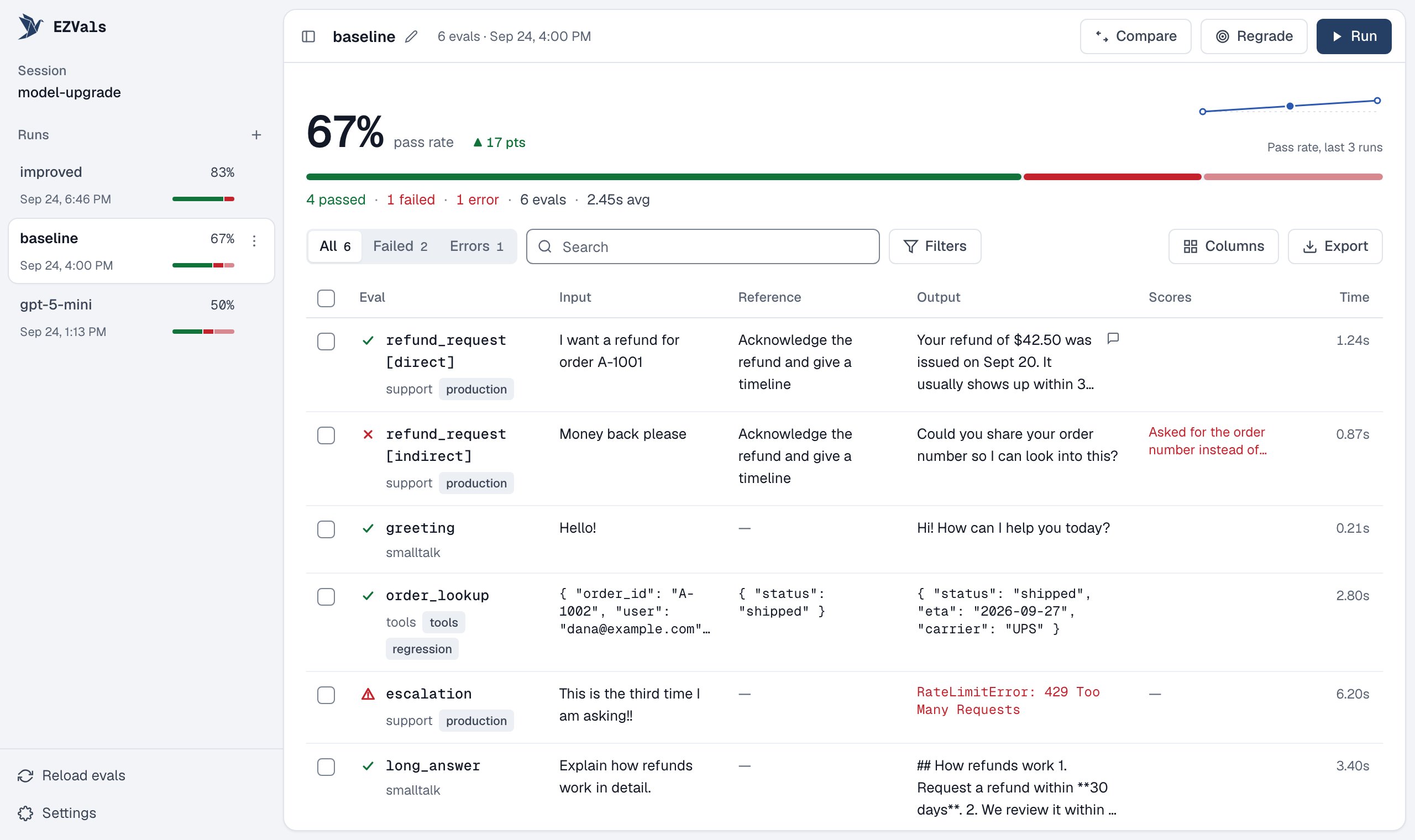
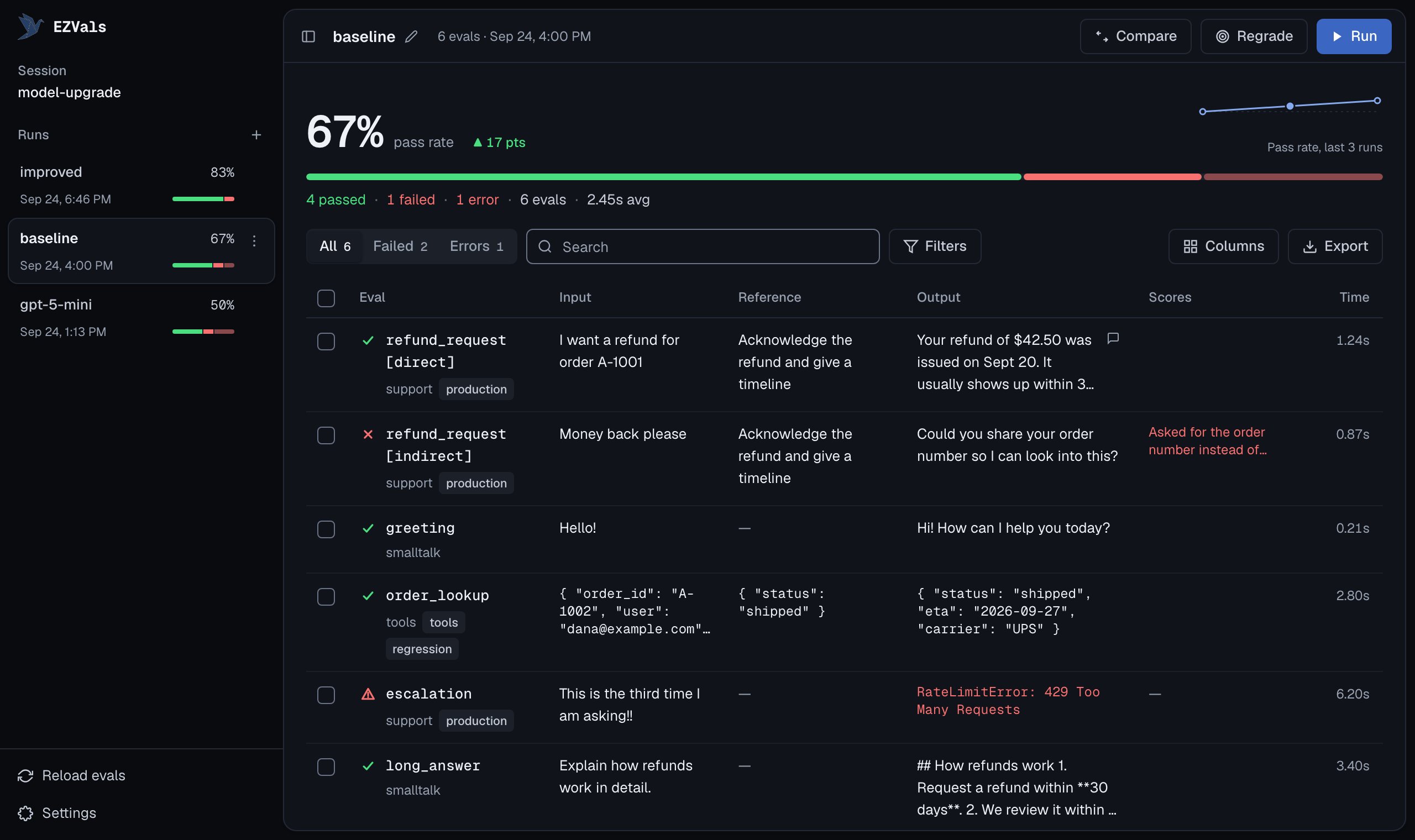
The sidebar lists the [session](/reviewing/sessions)'s runs, newest first, each with its pass rate. Click one to open it; its **⋯** menu compares it with the open run, renames, copies or deletes it.
 ## Run evals
* **Run** runs every eval, or only the rows you've selected. Results stream in as each eval finishes.
* While a run is going, you can **pause** it (running evals finish, queued ones wait) or **stop** it (everything unfinished is cancelled).
* Running again replaces those rows' results in the current run and keeps your annotations. To keep the old results, start a **new run** with **+** in the sidebar. It gets a fresh name in the same session.
* Every run uses your latest code, so edit an eval and run it again without restarting the server. To pick up new eval files or `ezvals.json` changes, use **Reload evals** at the bottom of the sidebar.
* **Regrade** scores the stored outputs again without calling your agent. See [Regrading](/writing-evals/targets-and-regrading#regrading).
* **Settings**, also in the sidebar, sets concurrency, timeout, trials, where runs are stored, completion notifications and the theme. Saving writes them to `ezvals.json`.
Each row's icon shows its outcome: not run, queued, running, passed, failed, error, scored (numeric scores only) or cancelled. A failed row also shows why, from the failing score's notes or the assertion that failed.
## Review failures
The summary above the table shows the pass rate, counts, average latency and a bar of passed, failed and errored rows, plus pass\@k and pass^k for [trials](/writing-evals/trials). If your evals store more than one score, each score key gets its own stat beside the pass rate, and the table shows which checks failed. When the session has an earlier run, it also shows how much the pass rate changed since then, and a small chart of the pass rate across the session's runs.
To narrow the table:
* Switch between all rows, failures only, and errors only.
* Search. You choose which columns search looks in.
* Filter by dataset, label, score, or whether a row has an annotation, error, trace URL or messages.
* Sort by score.
The summary always describes the rows you can see, so filtering answers questions like "what's the pass rate on the `edge-case` label?". Filters are kept when you open a result and come back.
## Open a result
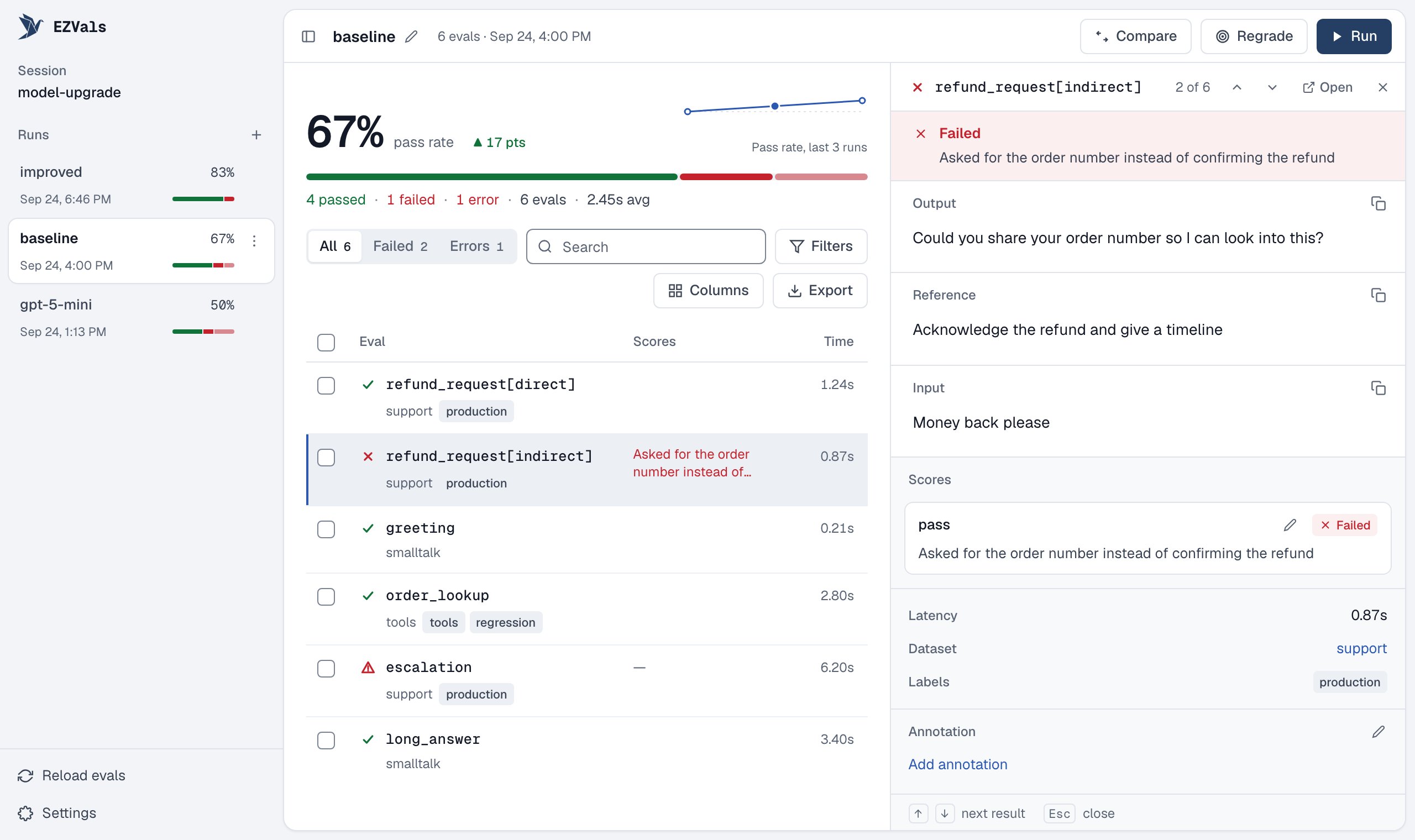
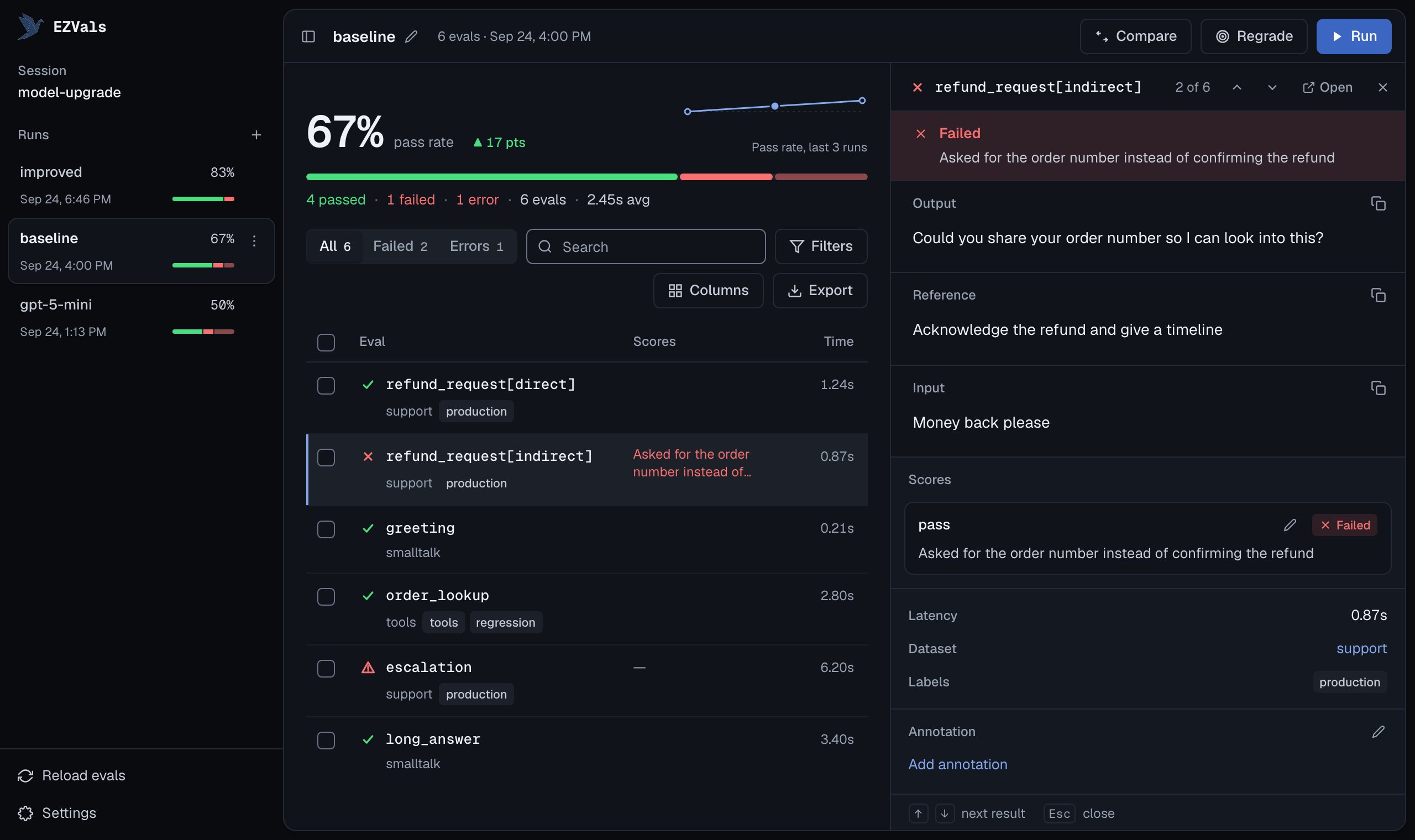
Click a row to read the result in a panel beside the table, so you keep your place in the run. Use ↑ and ↓ to step through the results, and Esc to close the panel. Press Enter, click **Open** or click the eval's name for its full page.
Both mark the outcome with an icon beside the eval name, and a result that errored gets a strip at the top with the error and its traceback. Below that:
* the output, the reference and the input (side by side on the full page, so you can compare them); chat transcripts render as conversations (you can switch to raw JSON)
* scores with their notes, which you can correct
* metadata, the tools the agent used, latency and extra trace data
* a link to the trace, if you stored a `trace_url`
## Run evals
* **Run** runs every eval, or only the rows you've selected. Results stream in as each eval finishes.
* While a run is going, you can **pause** it (running evals finish, queued ones wait) or **stop** it (everything unfinished is cancelled).
* Running again replaces those rows' results in the current run and keeps your annotations. To keep the old results, start a **new run** with **+** in the sidebar. It gets a fresh name in the same session.
* Every run uses your latest code, so edit an eval and run it again without restarting the server. To pick up new eval files or `ezvals.json` changes, use **Reload evals** at the bottom of the sidebar.
* **Regrade** scores the stored outputs again without calling your agent. See [Regrading](/writing-evals/targets-and-regrading#regrading).
* **Settings**, also in the sidebar, sets concurrency, timeout, trials, where runs are stored, completion notifications and the theme. Saving writes them to `ezvals.json`.
Each row's icon shows its outcome: not run, queued, running, passed, failed, error, scored (numeric scores only) or cancelled. A failed row also shows why, from the failing score's notes or the assertion that failed.
## Review failures
The summary above the table shows the pass rate, counts, average latency and a bar of passed, failed and errored rows, plus pass\@k and pass^k for [trials](/writing-evals/trials). If your evals store more than one score, each score key gets its own stat beside the pass rate, and the table shows which checks failed. When the session has an earlier run, it also shows how much the pass rate changed since then, and a small chart of the pass rate across the session's runs.
To narrow the table:
* Switch between all rows, failures only, and errors only.
* Search. You choose which columns search looks in.
* Filter by dataset, label, score, or whether a row has an annotation, error, trace URL or messages.
* Sort by score.
The summary always describes the rows you can see, so filtering answers questions like "what's the pass rate on the `edge-case` label?". Filters are kept when you open a result and come back.
## Open a result
Click a row to read the result in a panel beside the table, so you keep your place in the run. Use ↑ and ↓ to step through the results, and Esc to close the panel. Press Enter, click **Open** or click the eval's name for its full page.
Both mark the outcome with an icon beside the eval name, and a result that errored gets a strip at the top with the error and its traceback. Below that:
* the output, the reference and the input (side by side on the full page, so you can compare them); chat transcripts render as conversations (you can switch to raw JSON)
* scores with their notes, which you can correct
* metadata, the tools the agent used, latency and extra trace data
* a link to the trace, if you stored a `trace_url`
 On the full page, ↑ and ↓ also move between results, and Esc goes back to the table with the result still open.
## Annotate and correct scores
When you disagree with a grader or want to leave a note for later, edit the result directly:
* **Annotations** are free-text notes, such as "hallucinated the refund policy". They're kept when the eval runs again.
* **Score edits** change a score's pass/fail or value when you judge the grader was wrong. They're replaced the next time the eval runs or is regraded.
Every edit is recorded in the result's `correction_history` with the before and after values, so you (or a coding agent) can see where your judgment and the grader's differ, and use that to tighten the grader.
## Compare runs
Compare shows up to four runs from the same session side by side. Start it from **Compare** in the header, a run's **⋯** menu in the sidebar, the pass-rate change in the summary, or with `ezvals serve --compare-runs baseline,improved`.
On the full page, ↑ and ↓ also move between results, and Esc goes back to the table with the result still open.
## Annotate and correct scores
When you disagree with a grader or want to leave a note for later, edit the result directly:
* **Annotations** are free-text notes, such as "hallucinated the refund policy". They're kept when the eval runs again.
* **Score edits** change a score's pass/fail or value when you judge the grader was wrong. They're replaced the next time the eval runs or is regraded.
Every edit is recorded in the result's `correction_history` with the before and after values, so you (or a coding agent) can see where your judgment and the grader's differ, and use that to tighten the grader.
## Compare runs
Compare shows up to four runs from the same session side by side. Start it from **Compare** in the header, a run's **⋯** menu in the sidebar, the pass-rate change in the summary, or with `ezvals serve --compare-runs baseline,improved`.
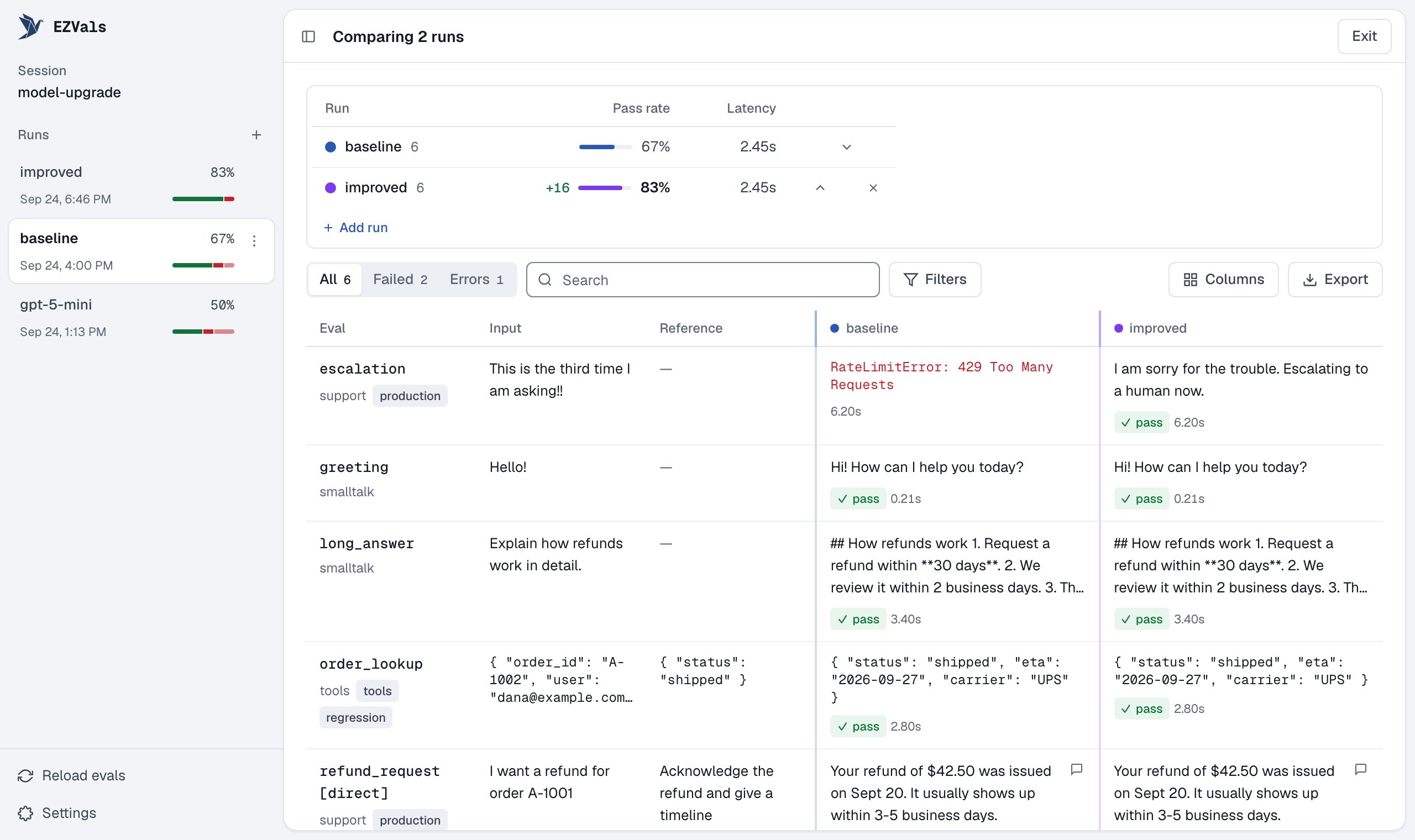
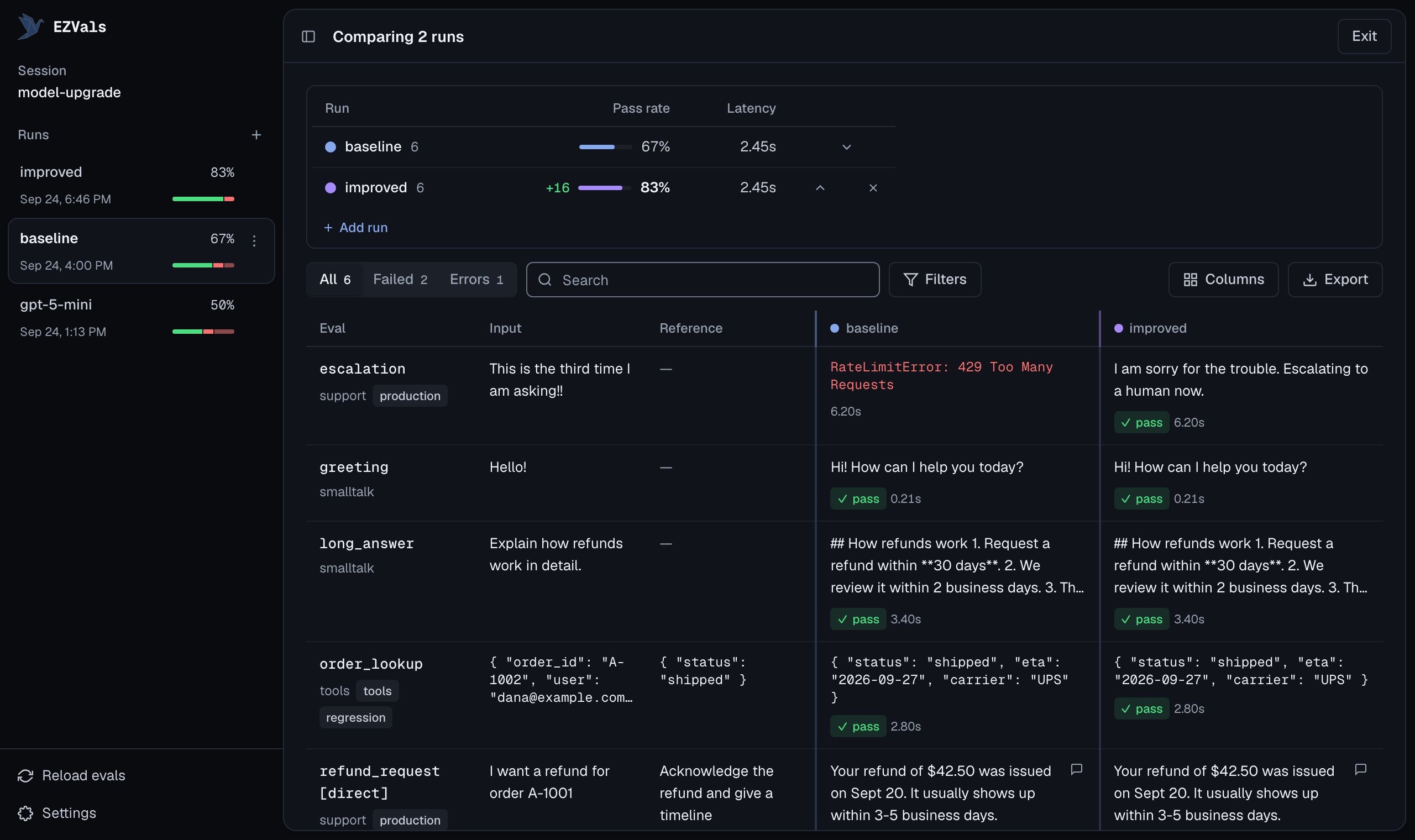 * The summary becomes a table with one row per run: its pass rate (and how much it changed from the first run), any other score keys and latency, with the best value in each column highlighted.
* The results table gets one column per run, with each run's output, scores and latency. Rows are matched by eval name and dataset, and a dash marks an eval that isn't in a run.
* Opening a result shows every run's output for that eval next to each other.
* You can add, remove and reorder runs. Running is disabled while comparing.
The URL includes the compared runs, so you can bookmark or share the view with someone using the same results folder.
## Export
| Format | Contents |
| -------- | ----------------------------------------------------------------------------------------------------------------- |
| JSON | The whole run |
| CSV | Every result, including annotations |
| Markdown | A report with score bars and a table of the rows and columns you can see |
| Image | The summary as a picture (the pass rate and outcome bar, or one row per compared run) to paste into a doc or chat |
JSON, CSV and Markdown are also available from the command line with [`ezvals export`](/reference/cli#ezvals-export). The image is only in the UI.
* The summary becomes a table with one row per run: its pass rate (and how much it changed from the first run), any other score keys and latency, with the best value in each column highlighted.
* The results table gets one column per run, with each run's output, scores and latency. Rows are matched by eval name and dataset, and a dash marks an eval that isn't in a run.
* Opening a result shows every run's output for that eval next to each other.
* You can add, remove and reorder runs. Running is disabled while comparing.
The URL includes the compared runs, so you can bookmark or share the view with someone using the same results folder.
## Export
| Format | Contents |
| -------- | ----------------------------------------------------------------------------------------------------------------- |
| JSON | The whole run |
| CSV | Every result, including annotations |
| Markdown | A report with score bars and a table of the rows and columns you can see |
| Image | The summary as a picture (the pass rate and outcome bar, or one row per compared run) to paste into a doc or chat |
JSON, CSV and Markdown are also available from the command line with [`ezvals export`](/reference/cli#ezvals-export). The image is only in the UI.