

ezvals serve:
How It Works
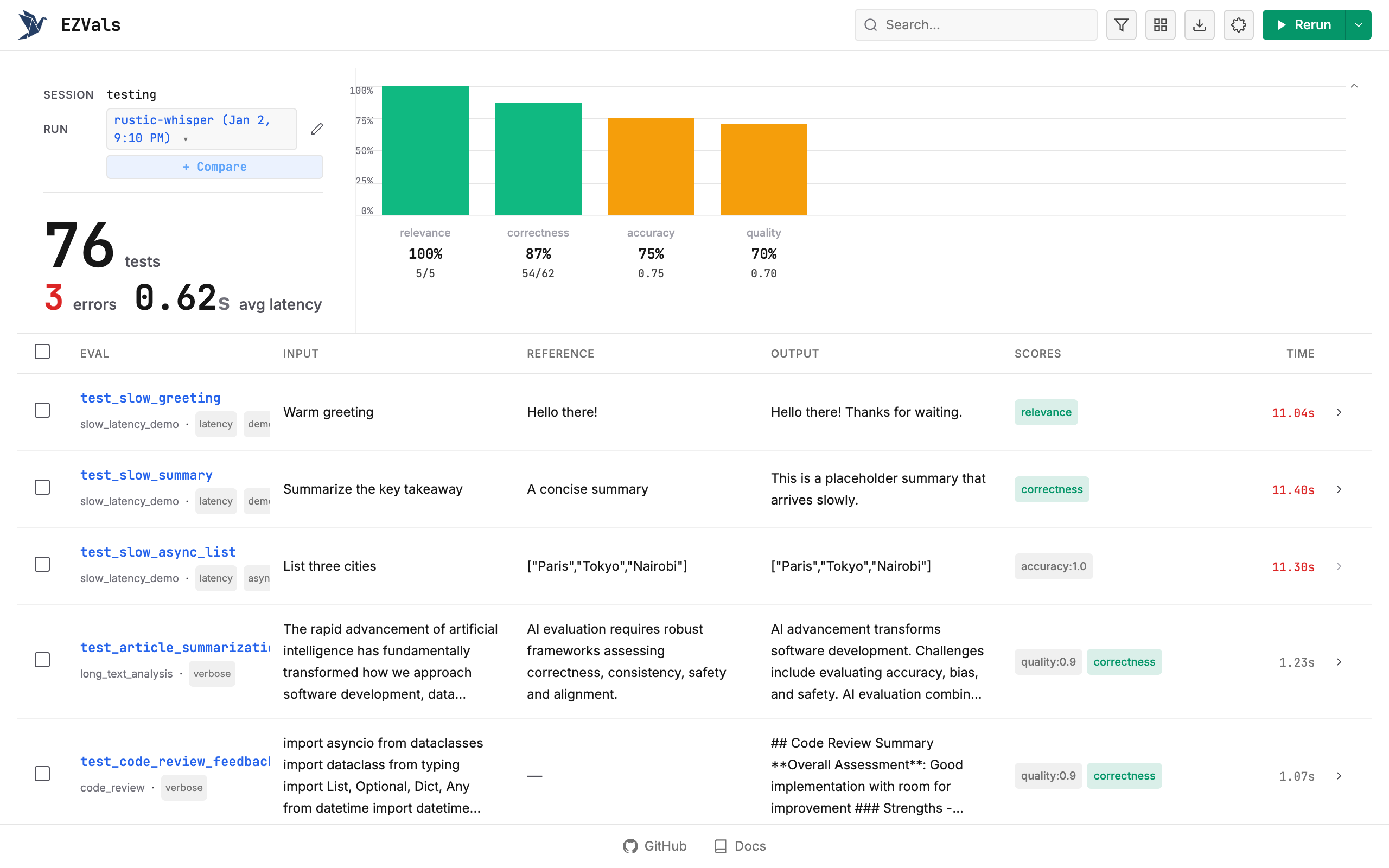
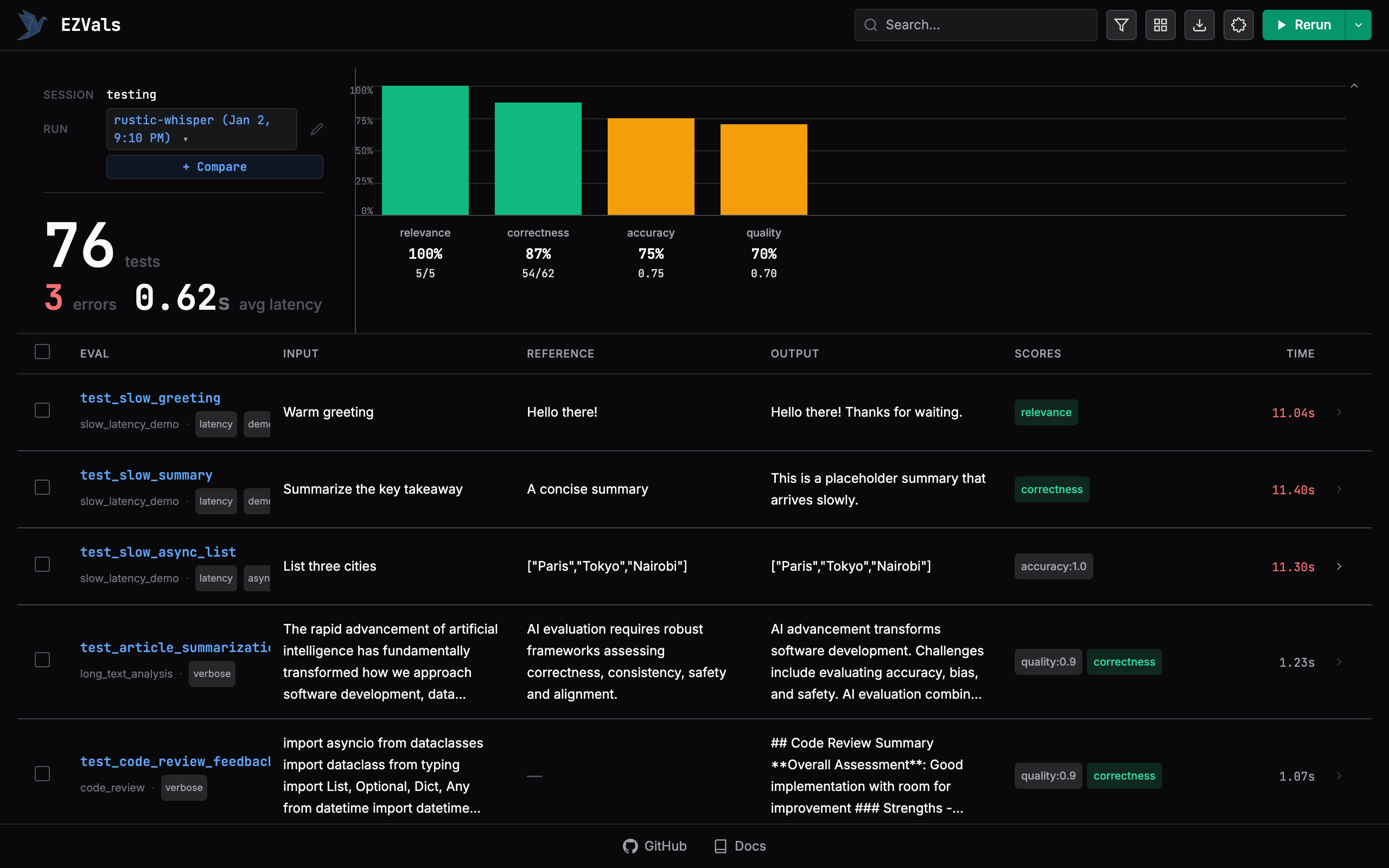
The UI discovers all@eval decorated functions in your file but doesn’t run them until you click Run. Results stream in real-time as each evaluation completes.
Results are saved to .ezvals/runs/ as JSON files. The UI loads from latest.json by default, which is a copy of the most recent run.
Results Storage
Run Controls
- Run Selected: Check rows, then click play to rerun only those evaluations
- Run All: With nothing selected, click play to rerun everything
- Stop: Cancel pending and running evaluations mid-run
Detail Page
Click a function name to open the full-page detail view with its own URL (/runs/{run_id}/results/{index}). Navigate between results with arrow keys (↑/↓) or press Escape to return to the table.
When input, output, reference, or trace messages contain chat-style message arrays (OpenAI, Anthropic, or similar {role, content} variants), the detail view auto-renders them in a chat-style layout. Use the Pretty/Raw toggle in each section to switch between formatted message boxes and raw JSON.
Inline Editing
In the detail page, you can edit:- Dataset: Reassign to different dataset
- Labels: Add or remove labels
- Scores: Adjust scores or add new ones
- Annotations: Add notes for review
Export
Click the download icon in the header to open the export menu:
Filtered exports respect:
- Active search and filters (only visible rows are exported)
- Column visibility (hidden columns are excluded)
- Computed stats from filtered results
Keyboard Shortcuts
Custom Port
Loading Previous Runs
To view or continue a previous run, pass the run JSON file directly:- Reviewing historical results
- Continuing an interrupted session
- Sharing runs between machines (copy the JSON file)
Comparison Mode
Compare results across multiple runs side-by-side. When you have 2+ runs in a session:- Click + Compare in the stats bar
- Select runs from the dropdown (up to 4)
- View grouped bar charts showing metrics across runs
- Compare outputs in a table with per-run columns